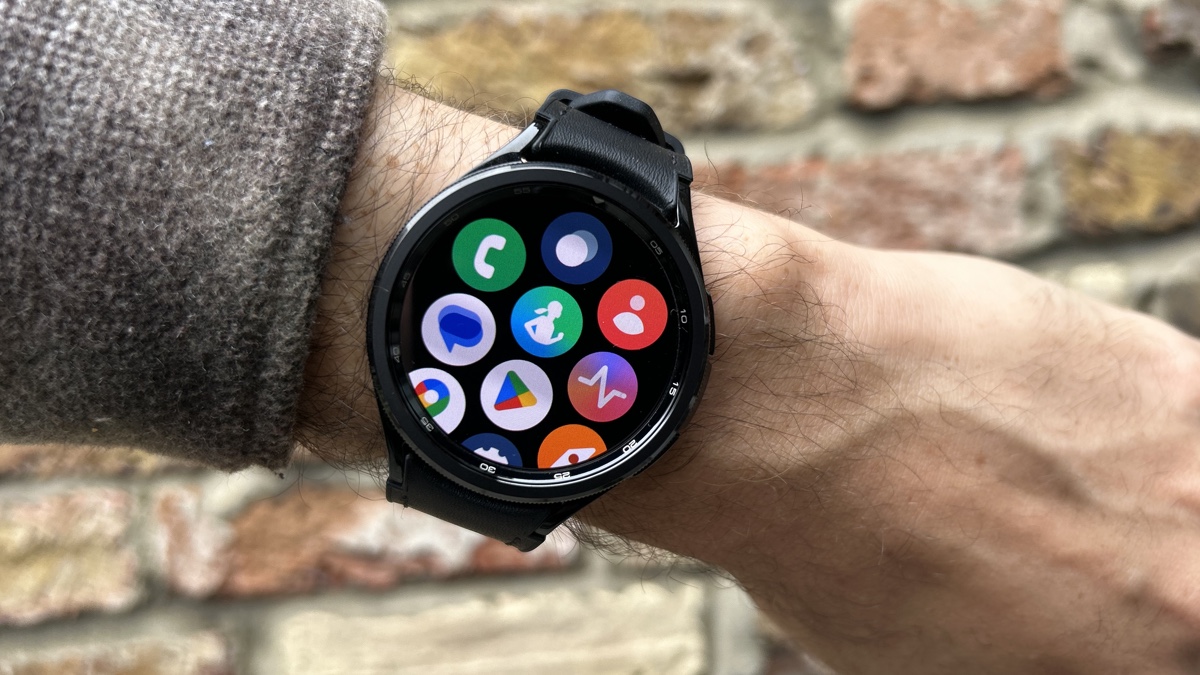
The Samsung Galaxy Watch 6 is a great fitness and workout accessory thanks to its selection of high-end sensors or modes, however no gym session or run is complete without some music.
In this guide, we’ll walk through the steps on how to download songs from the wearable version of Spotify. Doing this means you can leave your phone at home and stream downloaded songs directly from the app to a pair of connected headphones.
What you’ll need:
- A Galaxy Watch 6 or Galaxy 6 Classic
- An Android phone
- The Spotify app installed and logged in on the Android phone
- A Spotify Premium plan
The Short Version
- Open up the Play Store
- Find and download Spotify
- Tap on the Spotify app
- Find a playlist
- Tap the download button
- Check for the green tick
-
Step 1.
Open the Play Store

The first thing to do is open up the Play Store on your Galaxy Watch.
-
Step 2.
Find and download Spotify
Once in the Play Store, find the Spotify app and install it.
-
Step 3.
Tap on the Spotify app
Once installed, find the Spotify app in your app list. If you’re logged into Spotify on your phone then it should automatically log you in on the Watch.
-
Step 4.
Find a playlist
Swipe left and find a playlist, podcast or album. Tap your desired pick.
-
Step 5.
Tap the download button
Tap the downward-facing arrow icon and your choice will begin to download.
-
Step 6.
Check for a green tick
When you see a green tick next to a track, that means it’s downloaded and ready to be listened to offline. You can check on all your locally stored tracks in the ‘Downloads’ section of the app.


Troubleshooting
Yes, just like how you need Spotify Premium for downloads to work on the phone app, you need the paid-for service for songs to be downloaded on the wearable app.