With laptops and keyboards becoming smaller and lighter, it’s no wonder you won’t find every letter, symbol or emoji on your keyboard.
That doesn’t mean you can’t type them, though. Keep reading to learn how to type special characters on Windows using the Alt key and a numeric keypad, or scroll down to the bottom of this guide for more advice on finding and entering special characters without a numeric keypad.
What you’ll need
- A Windows PC
- A numeric keypad
The Short Version
- Click on the Windows search bar
- Type Character Map
- Click the Character Map app
- Choose any special character
- Hold Alt and enter the numbers displayed to type that special character
How to type special characters on Windows
-
Step 1.
Click on the Windows search bar

Or open the Character Map app if you already have it pinned.
-
Step 2.
Type Character Map
This is where you’ll find a full list of the special characters available for your device and font.
-
Step 3.
Click the Character Map app
The app should come pre-installed on your device. If it isn’t available, you can download it via the Control Panel.
-
Step 4.
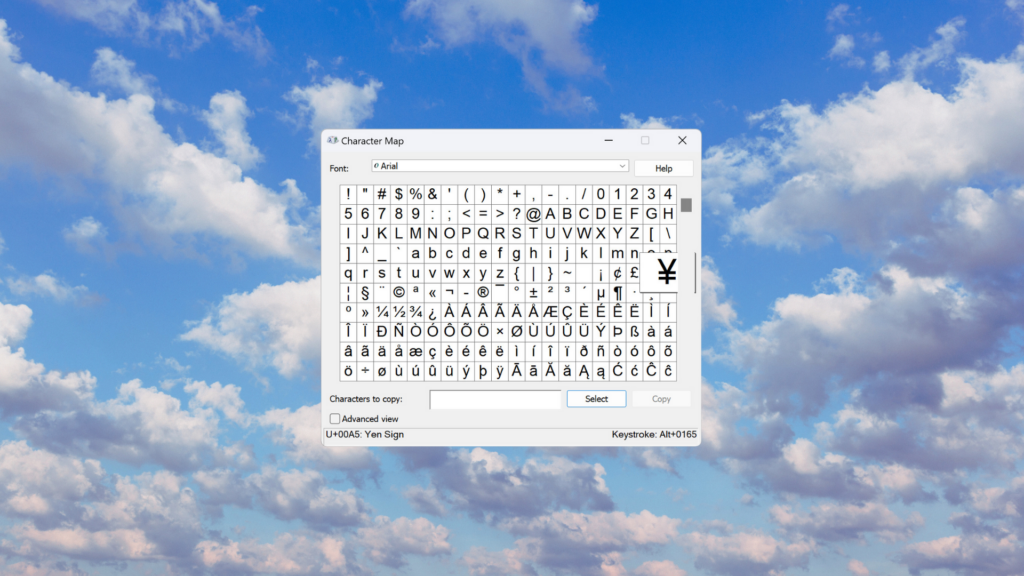
Choose any special character
You can use the scroll bar on the right to look through all of the characters. Once you find the one you want to use, click on it.
-
Step 5.
Hold Alt and enter the numbers displayed to type that special character
You should see a shortcut next to Keystroke in the bottom right corner of the Character Map. This is the corresponding shortcut for the character you’ve selected.


Troubleshooting
If you don’t have a numeric keypad, the Alt key shortcuts might not work for you. Some devices might require you to press the Fn button before entering the Alt shortcut.
If this doesn’t work, you can always open the Character Map by following steps 1 to 3 and copy-paste the special character into your document directly from the app.
You can find a full list of the special characters available on your device with your chosen font by scrolling through the Character Map.
To do this, simply search for Character Map on your laptop and click on the app to open it.