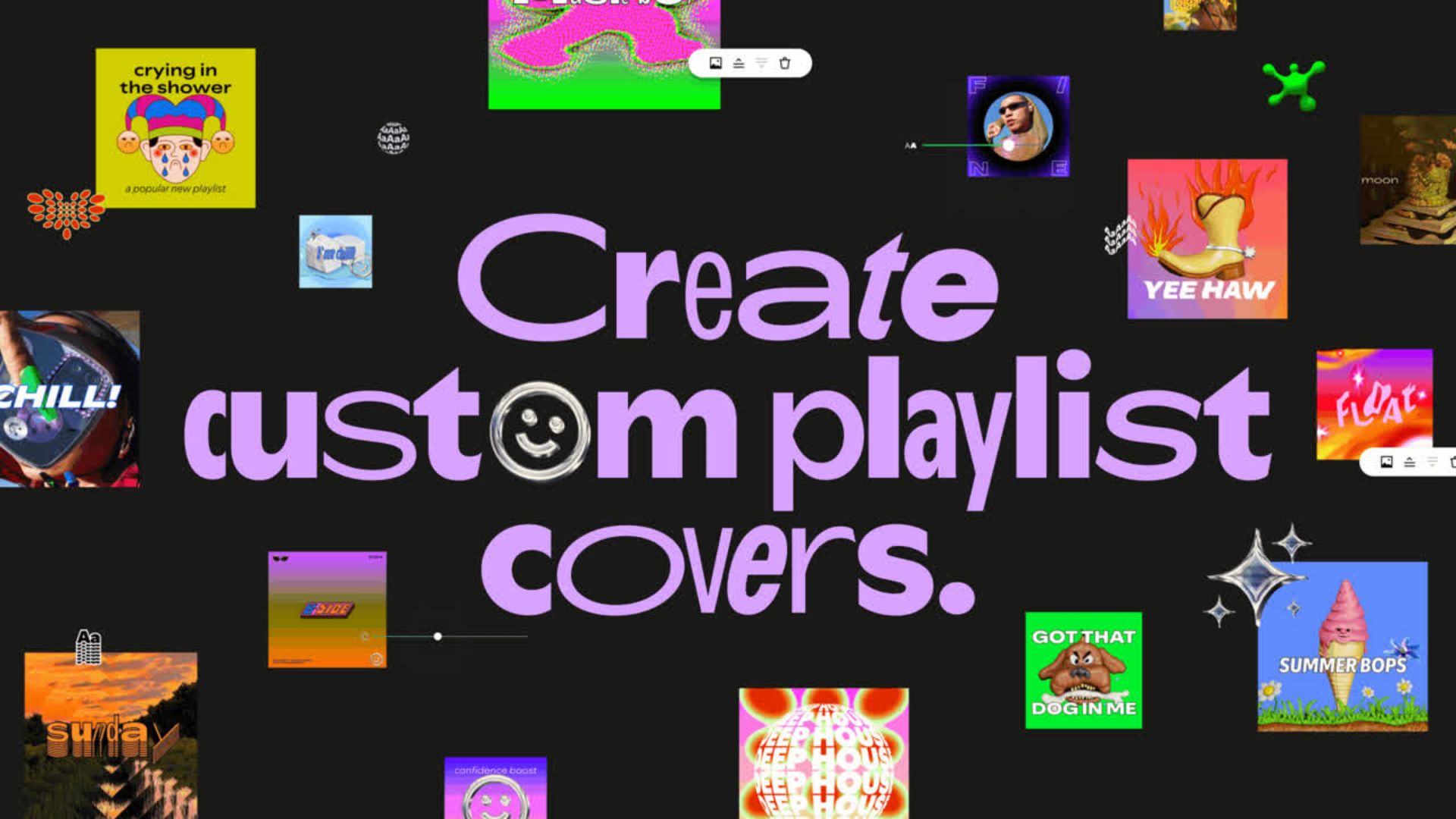
Spotify is rolling out a brand new feature that allows users to design and customise their own playlist cover art.
Available for both free and premium members, Spotify users can unleash their creativity and personalise cover art for all of their own favourite playlists.
Read on to learn how to create your own cover art for your playlists.
What you’ll need
- Spotify mobile app (iOS or Android)
The short version:
- Open Spotify on your smartphone
- Select your playlist
- Tap the three dot icon
- Tap Create cover art
- Tap the Create cover art icon
- Follow the on-screen introduction
- Begin designing
- Tap Save
- Tap the green Save button
- View your new playlist cover art

-
Step 1.
Open Spotify on your smartphone

We’ll be demonstrating using the iOS Spotify app, however the steps are similar when using the Android app.
-
Step 2.
Select your playlist
Find the playlist you would like to customise from your Spotify library. You’ll only be able to do this with playlists you own.
-
Step 3.
Tap the three dot icon
Underneath the existing playlist cover and title, you’ll see three dots in a horizontal line. Tap here.
-
Step 4.
Tap Create cover art
This is about halfway through the list of options, as shown here.
-
Step 5.
Tap the Create cover art icon
Tap the white Create cover art icon to begin creating.
-
Step 6.
Follow the on-screen introduction
When you first open the option to create your own cover art, you’ll be shown an introduction to the feature. Click Next on each screen once you’ve read the on-screen information.
-
Step 7.
Begin designing
Here you’ll find options at the bottom panel to: add and customise text, add images from your photo library, add pre-installed stickers and change the background colour too.
-
Step 8.
Tap Save
Once you’re happy with your design, tap Save in the top right corner.
-
Step 9.
Tap the green Save button
You’ll then need to confirm you want to save your design, as you won’t be able to edit it again past this point. If you are definitely happy, tap the green Save button.
-
Step 10.
View your new playlist cover art
While you can’t edit your cover art, you can create a new one instead at any time.


Troubleshooting
Make sure your Spotify app is up to date, as this is a very new feature that’s just launched.
Otherwise, as Spotify is still rolling it out in beta, it may simply take a while for you to gain access to the tool. Keep checking and ensure your Spotify app is up to date.
No, at the time of writing you can only create cover art for playlists you own.